
Troubleshooting Common Phone Problems: Expert Fixes for Screen, Battery, Charging & Software Issues
By Admin Adminst, Phone Repair FAQs
Smartphones are essential tools in modern life, but they can also be prone to a myriad of problems. Understanding common phone problems and effective smartphone troubleshooting techniques is crucial for maintaining device performance and minimizing downtime. This comprehensive phone issues guide will explore common smartphone challenges such as rapid battery drain, overheating, unresponsive touchscreens, charging port failures, connectivity errors, app crashes, and accidental water damage. Each section provides detailed, step-by-step troubleshooting instructions to empower users with practical solutions, while also advising when professional repair services from trusted local experts like Phone Repair Nerds in Humble, TX, are necessary.
Expert Solutions for Common Phone Problems
Identifying common phone problems and applying targeted smartphone troubleshooting steps can extend the lifespan of your device and save you time and frustration. This guide breaks down major categories of phone issues, offering actionable tips and detailed instructions for diagnosing and fixing your smartphone or knowing when to seek professional help.
Troubleshooting Common Smartphone Issues: Expert Repair Guide
Screen problems remain among the most noticeable and frustrating phone issues. Users often experience cracks, dead pixels, or an unresponsive touchscreen.
How Can You Diagnose and Repair Phone Screen Damage Effectively?
Step-by-step troubleshooting for screen damage:
- Visual Inspection: Check the screen carefully for any visible cracks, scratches, or discoloration.
- Touch Sensitivity Test: Attempt to interact with all areas of the screen, noting any dead zones or lack of response.
- Restart the Device: Perform a hard reset to determine if the touchscreen responsiveness improves, ruling out a temporary software glitch.
- Safe Mode Test: Boot into safe mode to check if third-party apps affect touch response.
- Screen Replacement: If physical damage is confirmed and problems persist, consider professional screen repair or replacement.
What Are the Signs of a Cracked or Malfunctioning Phone Screen?
Signs include:
- Visible cracks or chips on the screen surface.
- Unresponsive or intermittent touch functionality.
- Discoloration or flickering display elements.
- Dead pixels or lines disrupting the screen image.
Battery Problems:
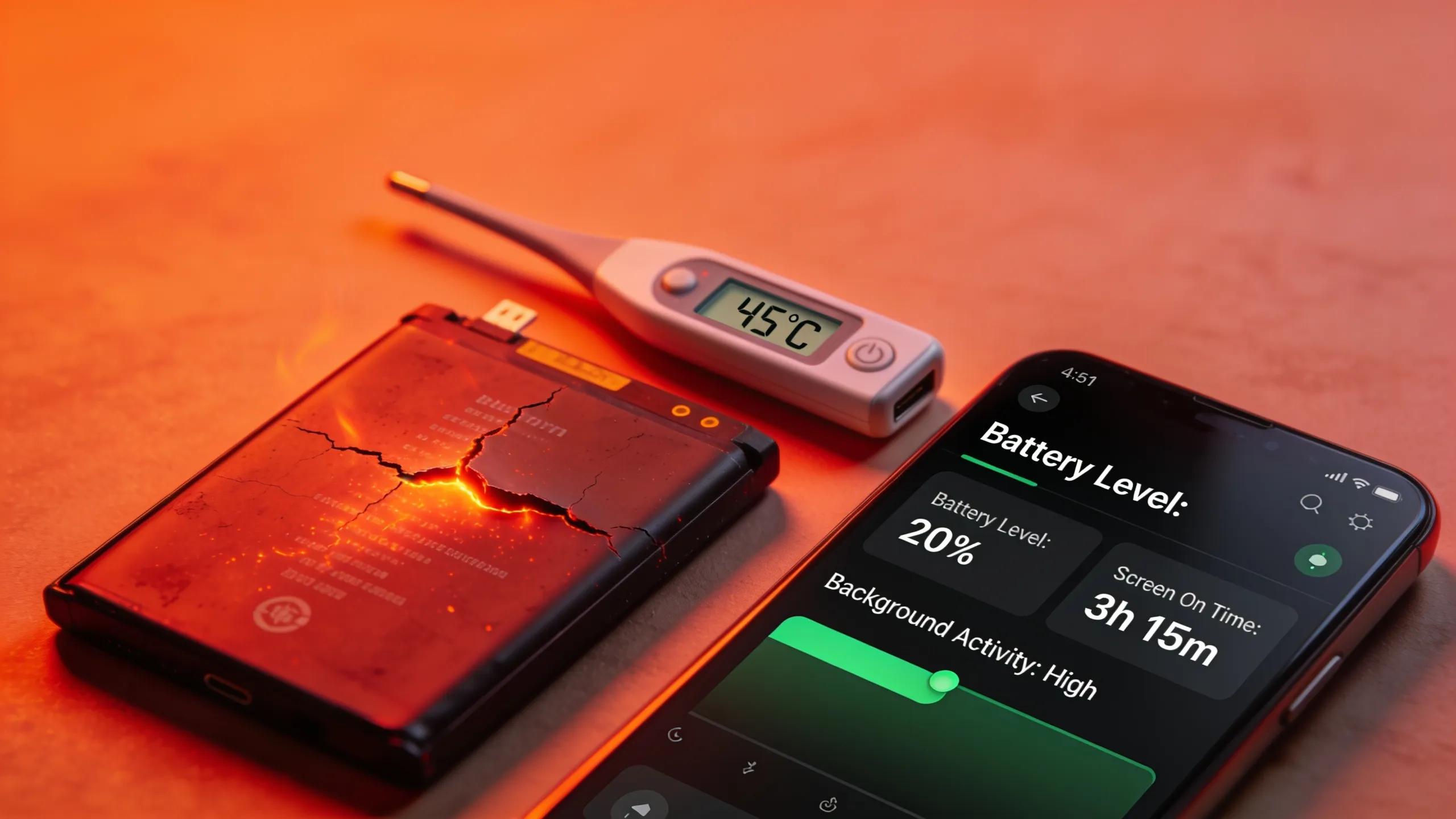
Rapid battery drain and overheating are among the most common complaints in smartphone troubleshooting.
Step-by-Step Troubleshooting for Rapid Battery Drain and Overheating
- Check for Battery-Draining Apps: Navigate to your phone’s battery settings and identify apps consuming excessive power; consider closing or uninstalling them.
- Disable Unnecessary Features: Turn off Bluetooth, GPS, Wi-Fi, and background app refresh when not in use.
- Lower Screen Brightness: Reduce brightness or enable adaptive brightness to save power.
- Update Software: Ensure your phone’s software is up to date, as patches often improve battery management.
- Monitor Device Temperature: Avoid using your phone in extreme heat and remove cases that may trap heat during charging.
- Battery Calibration: Occasionally allow your battery to discharge fully and then charge to 100% to recalibrate.
- Professional Battery Replacement: If battery performance does not improve, seek certified battery replacement services.
How to Identify Battery Drain and Overheating Causes?
- Background applications running persistently.
- Aging or faulty battery hardware.
- Environmental factors, such as high ambient temperature.
Charging Difficulties:
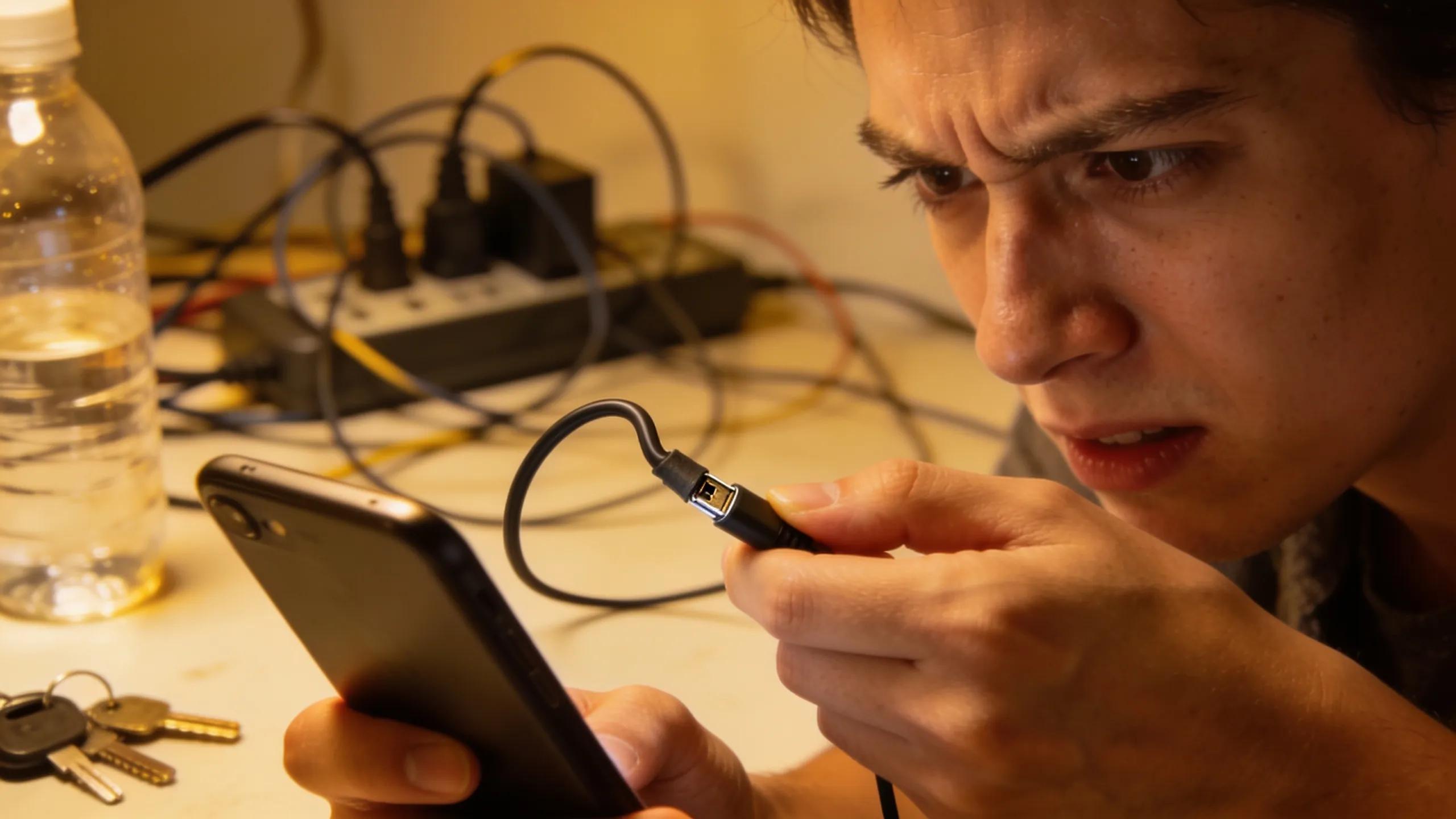
Charging port failure and slow charging can severely impact smartphone usability.
How to Troubleshoot Common Phone Charging Issues Efficiently?
- Inspect Charging Cable and Charger: Examine for frayed wires, bent connectors, or damage; test with a known working charger and cable.
- Clean Charging Port: Use a dry, soft brush or compressed air to remove lint and debris carefully.
- Try Alternative Power Outlets: Rule out faulty electrical sources by using different outlets.
- Restart Device: Perform a soft reset to clear temporary software issues affecting charging.
- Update Phone Software: Ensure the device firmware is current, as updates may resolve charging bugs.
Common Causes and Cleaning Tips for Charging Port Failure
- Accumulated dirt, dust, and lint blocking connections.
- Damaged or worn-out charging cables and adapters.
- Software glitches interfering with the charging process.
Connectivity Errors: Bluetooth and Wi-Fi Troubleshooting
Connectivity issues disrupt essential functions and need prompt resolution.
Bluetooth Troubleshooting Steps:
- Toggle Bluetooth off and on to refresh connections.
- Forget the paired device and re-pair to clear cache conflicts.
- Restart your smartphone to resolve temporary glitches.
- Check device compatibility and proximity to paired devices.
- Update device software and the connected device’s firmware.
Wi-Fi Connectivity Troubleshooting:
- Toggle Wi-Fi off and on and reconnect to your network.
- Restart your router and smartphone.
- Forget the Wi-Fi network and reconnect entering the password.
- Reset network settings if problems persist (note this erases saved networks).
- Verify no outages or limitations on the internet service provider side.
App Crashes and Software Malfunctions:
Apps that crash repeatedly can impair smartphone usability.
Step-by-Step Fixes for App Crashes and Software Issues:
- Update apps to the latest versions to resolve bugs.
- Clear app cache and data to remove corrupt files.
- Restart the smartphone to clear temporary glitches.
- Uninstall and reinstall problematic apps.
- Perform a factory reset as a last resort to clear persistent software issues.
Accidental Water Damage:
Water exposure can cause severe damage if not addressed quickly.
Immediate Actions After Water Exposure:
- Power off the phone immediately to prevent electrical shorts.
- Remove SIM card and memory cards, drying them separately.
- Dry the exterior with a soft cloth and avoid heat like hair dryers.
- Avoid charging or powering on until thoroughly dried.
- Place the phone in a container with silica gel packs or uncooked rice for at least 48 hours.
- After sufficient drying, power on to test functionality.
When to Seek Professional Water Damage Repair
- Phone does not power on after drying.
- Unusual screen behavior or erratic functionality.
- Persistent corrosion or moisture-related issues.
When to Seek Professional Help
While this phone issues guide equips users with comprehensive smartphone troubleshooting methods, certain problems require expert intervention. Consider contacting professional repair services such as Phone Repair Nerds in Humble, TX, especially when:
- Device is Completely Unresponsive: No power or signs of life after basic troubleshooting.
- Physical Damage Requires Repairs: Broken screens, damaged charging ports, or water damage beyond home remedies.
- Complex Software Issues Persist: Repeated crashes or software malfunctions despite resets and updates.
- Batteries Need Replacement: Rapid battery drain or overheating occurring consistently.
Phone Repair Nerds offers local, reliable diagnosis and repair services for physical, software, and hardware phone issues in Humble, Kingwood, Atascocita, and Northeast Houston areas, helping customers get back online quickly and safely.